
Recently, I encountered a frustrating issue on my independent store, CuddlePets. Several product pages were displaying broken image icons, causing the layout to look messy and unprofessional.
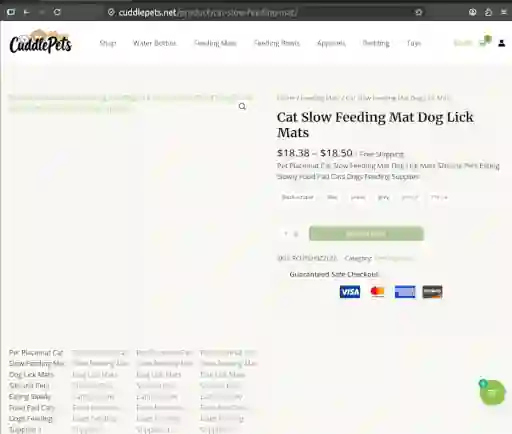
🔍 The Root Cause: Hotlink Protection
After some investigation, I discovered that the missing assets were external images (hotlinked directly from the supplier). It turns out the supplier’s server had enabled hotlink protection, effectively blocking my site from loading their images (resulting in 403 Forbidden errors).
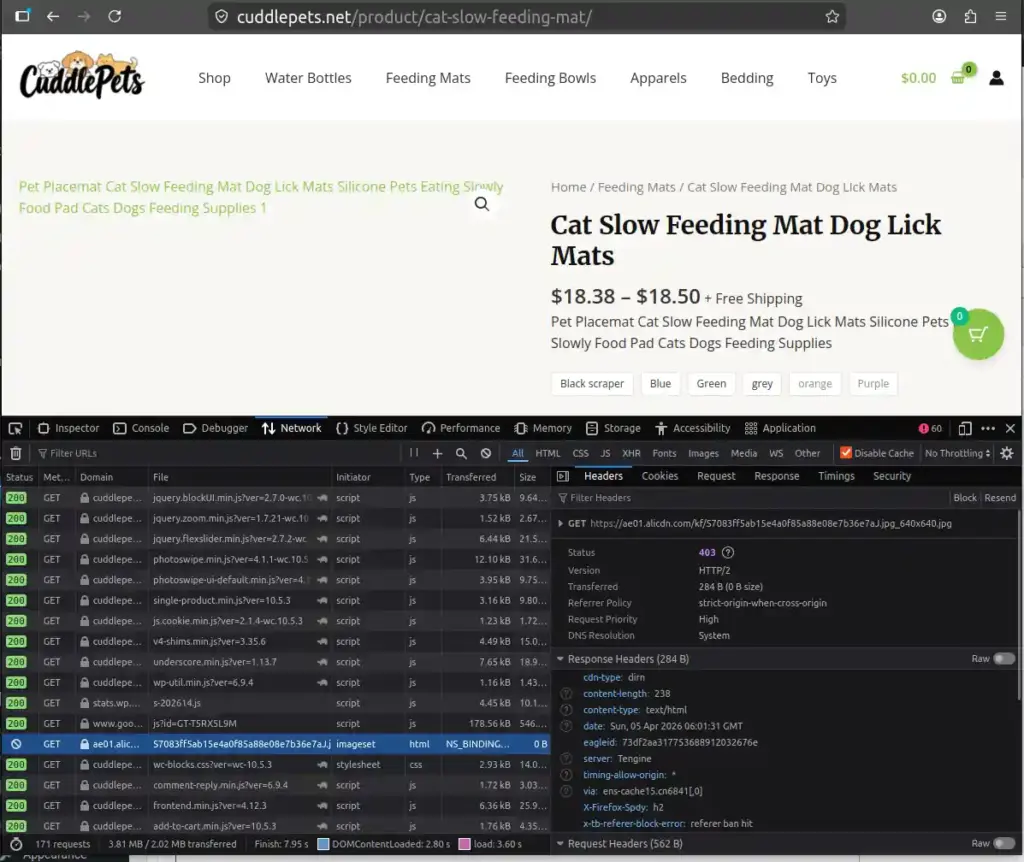
🛠️ The Solution: Localize Your Media
To fix this, the most reliable method is to download these blocked external images to your own local server and replace the external links.
For the images embedded within the product description, I highly recommend using the WordPress plugin nicen-localize-image. It automates the process by scanning your content, downloading the external images to your media library, and replacing the links instantly.
⚠️ Why Gallery and Variation Images Require Manual Work
However, you will notice that this plugin does not automatically process images in the Product Gallery or Variation Swatches. You will need to update these manually.
This limitation exists because of the plugin’s core logic:
- Content Scanning:
nicen-localize-imagerelies on regular expressions to scan and replace images within the standard WordPress content area (the_content). - Metadata Storage: WooCommerce stores Product Gallery and Variation images in Post Meta (database fields), not directly in the HTML text of the content area.
Since these images are hidden in the metadata, the plugin effectively cannot “see” them to download and replace them.
✅ The Result
After spending about half a day downloading and manually replacing the gallery and variation images, the product pages are finally back to normal.
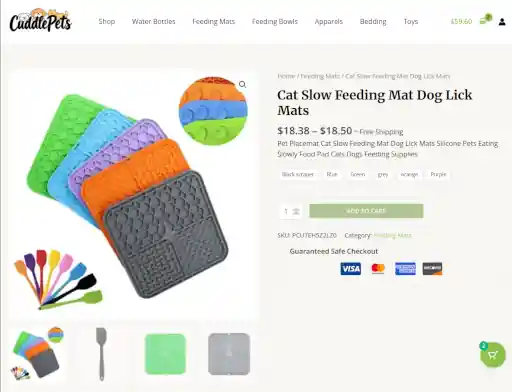
Key Takeaway: While automation plugins are great for product descriptions, always check your Gallery and Variations manually when fixing hotlink issues